
What is SAP ABAP workflow
The following information is intended for learners who want to understand how the multiple condition step in workflow works. ABAP workflow for beginners
Steps:
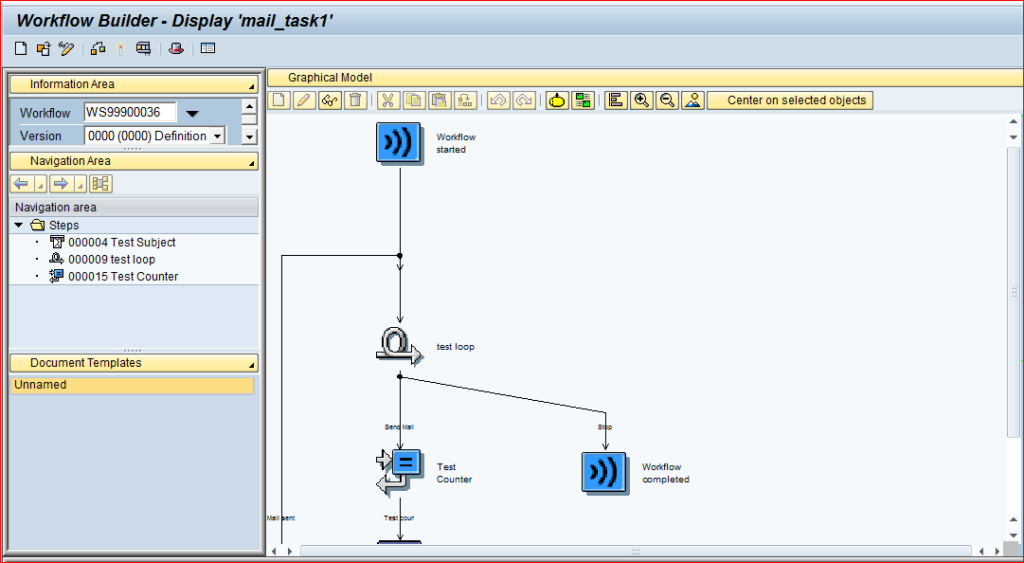
1) Go to Transaction code ‘SWDD’ and we can see the following screen.
a) SWDD is the Transaction code where we can build a workflow.
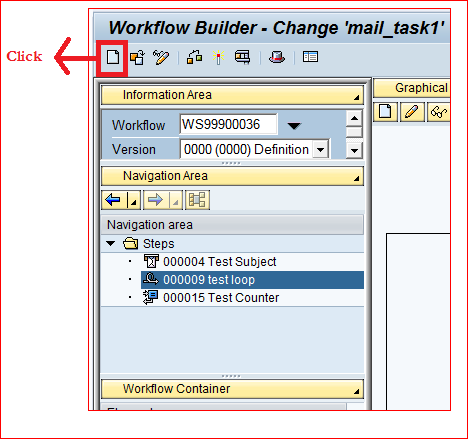
2) Click on the ‘create new workflow’ button which is on the top left of the screen as shown below.
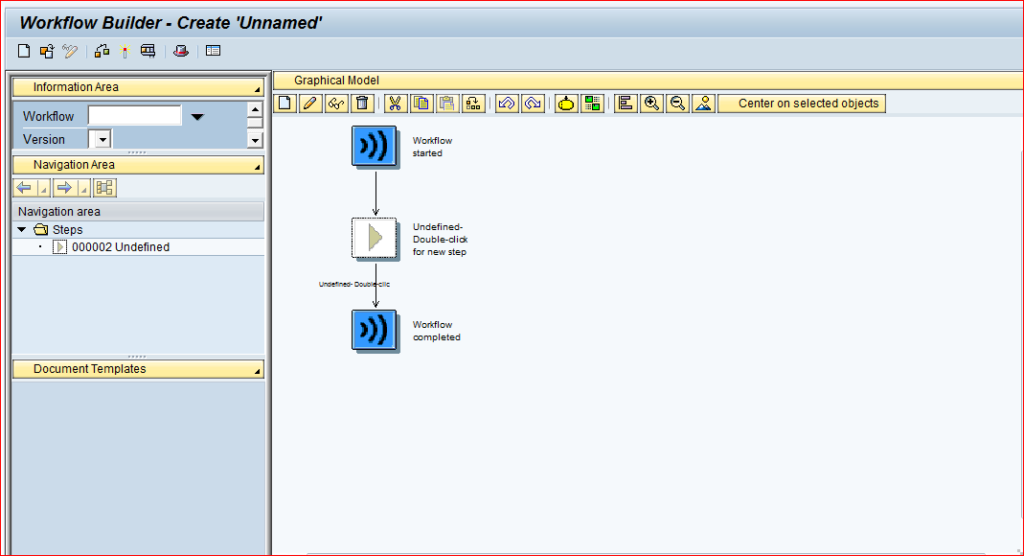
3) Now our workflow builder screen looks as shown below.
a) By clicking on ‘create new workflow’ button the workflow step layout will be reset to the initial stage.
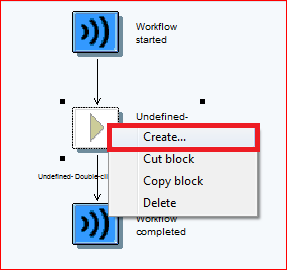
4) Now we have to right click on ‘undefined for new step’ as shown below and click on
create or double click on it.
a) ‘Undefined- Double-click for new step’ allows us to create required steps in sequence.
b) This decides the flow of processes in our workflow.
5) Now a popup window will appear as shown below consisting of different step types for selection.
a) In ‘step selection’ window we get steps to select depending on our business logic.
b) For Example: If we want to send a mail then, we have to select ‘Send Mail’ step.
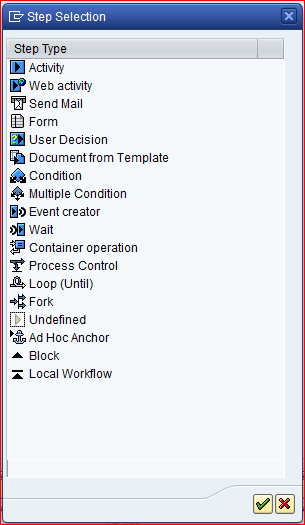
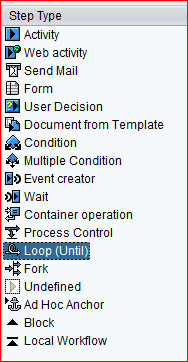
6) First Select the Loop (Until) step.
a) If we want to process a step more than once then, we can use Loop(Until) step.
b) This step loop, until the condition given in loop step is true.
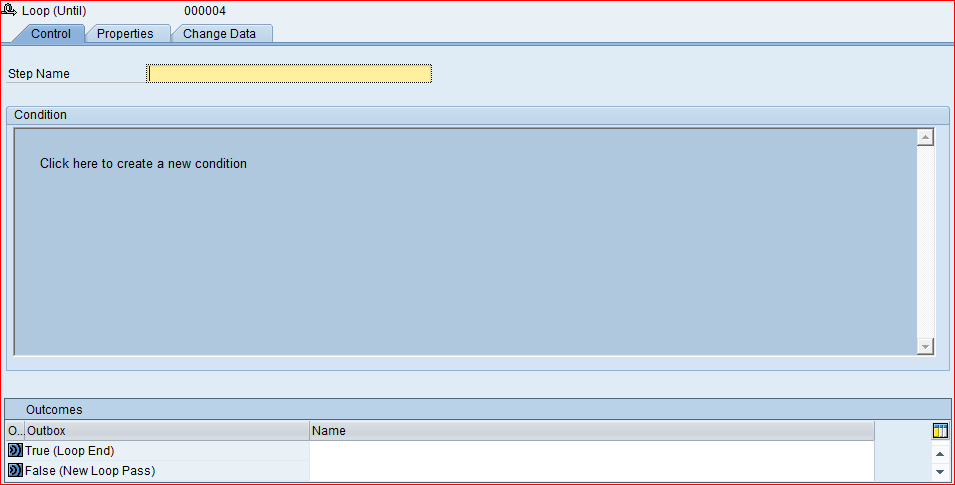
7) Screen of the loop(until) looks as shown below.
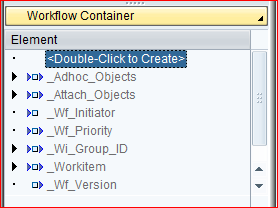
8) Now on the left-hand side of the screen we can see a button choice, we have to choose
‘Workflow Container’ and double click on the blue space highlighted below.
a) Container element contains 4 tabs.
i) D.type(Data Type).
ii) Properties.
iii) Initial Value.
iv) Change Data.
9) Now below screen shows the pop-up to create the container element.
a) ‘D.type’ tab provides three options for data type declaration.
- Object type: Here we can choose Business object or Class as data type.
- ABAP Dict. Reference: Here we can use ABAP Dictionary structure along with the required field as data type.
- ABAP Dict. Data Type: Here we can use ABAP dictionary data elements datatypes for data types declaration.
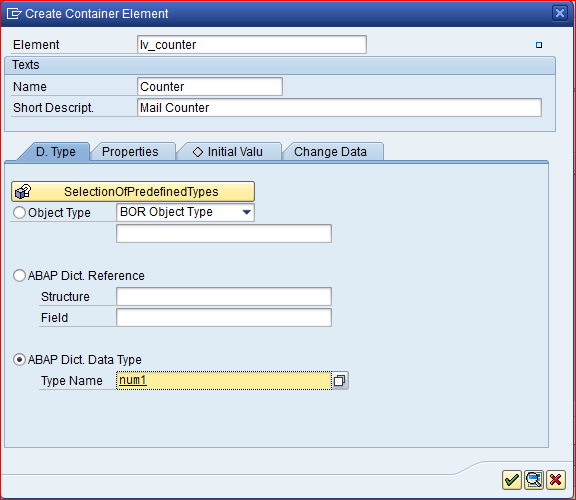
10) Now we have to click on ‘Properties’ tab in the pop-up and fill it as shown below.
Check on both importing and exporting checkboxes.
a) Here we can set the property of the parameter (Container Element) being created.
b) Properties like Importing, Exporting, Mandatory can be applied.
c) Multiline property: This property is checked allows to insert of multiple entries
(Internal table like) into the element create.
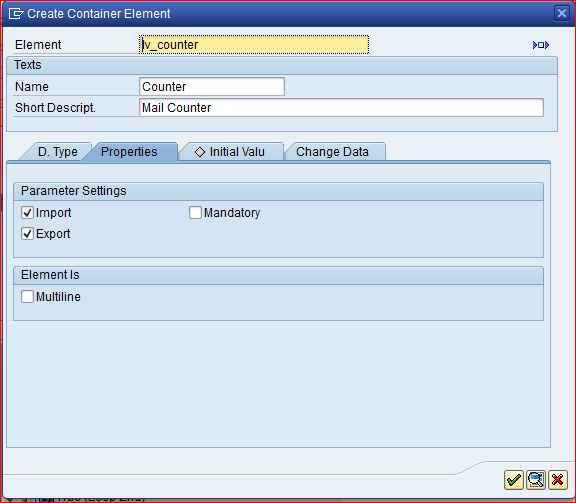
11) Now we have to click on the ‘Initial Value’ tab and fill the counter as ‘3’.
a) Initial value tab allows us to initialize the element.
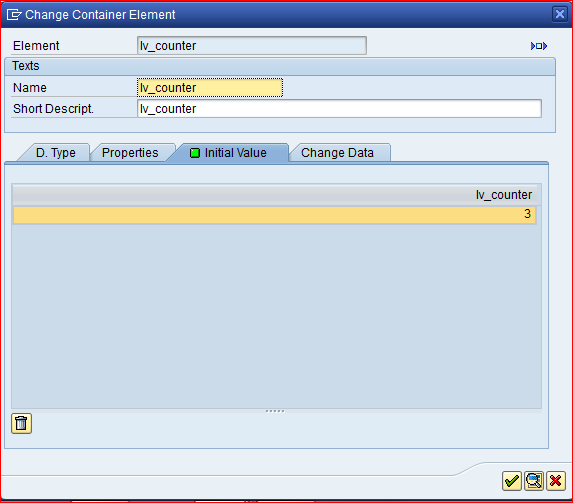
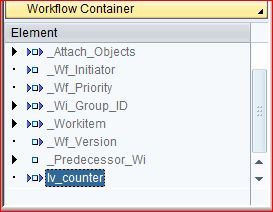
12) Now click on the OK button and an element will be created as shown below.
a) Here double arrow marks in the front ‘LV_COUNTER’ element created means,
it has both import and export parameter checked.
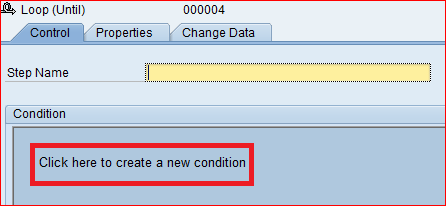
13) Now we have to give the step name of the Loop(Until) screen and click on
‘Click here to create a new condition’ to create a ‘loop end condition’.
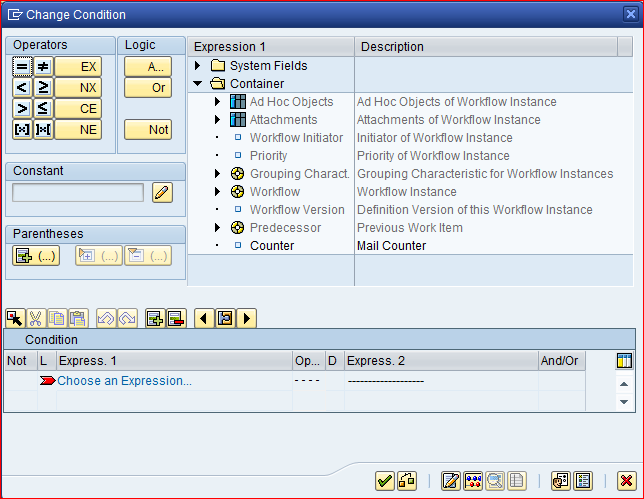
14) The popup window of the loop condition looks as shown below.
a) In this popup we have sections of
- : Here we choose the ‘Relational operator’ applicable for our
- Logic: Here we choose the ‘Logical operator’ applicable for our
- expression.
- Constant: This section provides space to enter numeric or alphabetical
- applicable for our expression.
- : Adding Parentheses(After comment) to the expression
- using this section.
- Expression 1 and Description section: Here we can choose system fields and Workflow container elements for our expression.
- Condition: This is the space provided to prepare condition expression/s for our loop.
15) Now we have to give the condition and click on ok.
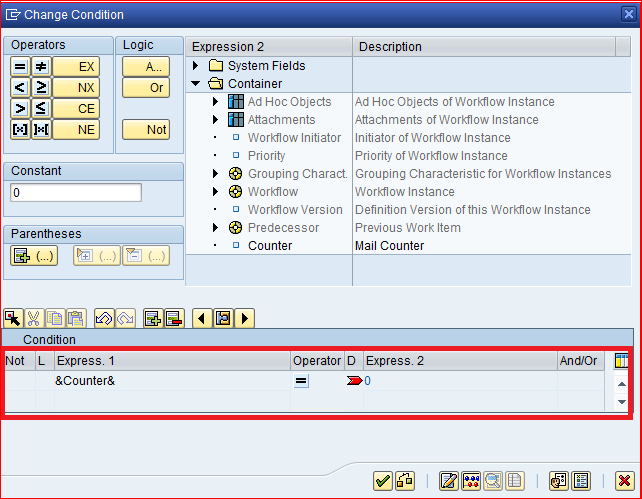
16) Now the loop step screen looks as follows.
a) Below condition means this loop step will complete (End) once the variable
LV_COUNTER’s value is ‘0’.
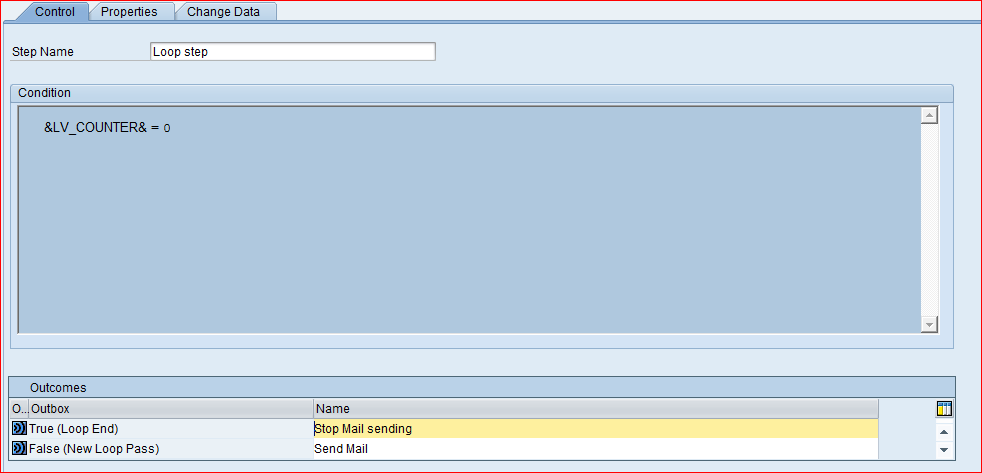
17) Now go back to the first screen and save workflow builder.
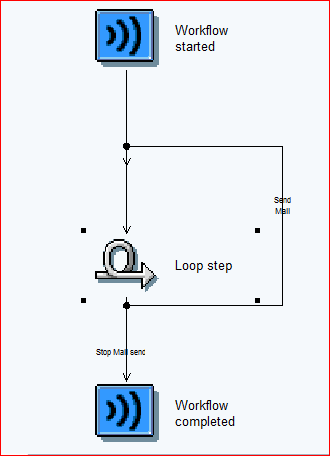
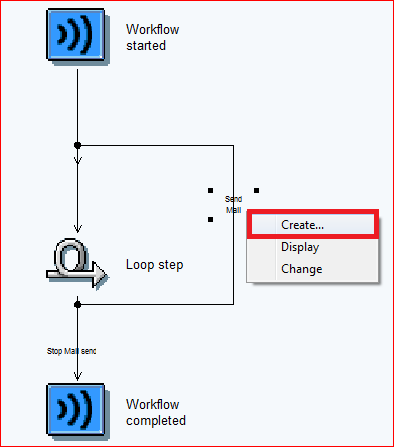
18) Now right click on the loop branch and click on the ‘create…’ option.
a) Here we can create and include the steps in the loop branch as shown below.
b) Steps included inside the loop branch will be processed in loops until the loop ends.
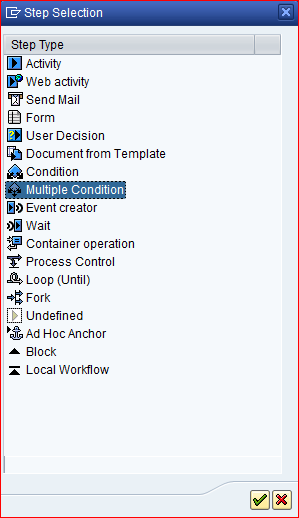
19) We have to select the ‘Multiple Condition’ step to create multiple branches for execution on different conditions.
20)Multiple condition step.
a) First, we have to enter ‘step name’.
b) Select type as ‘Switch’.
c) And create conditions as shown below.
Here we are creating three conditions.
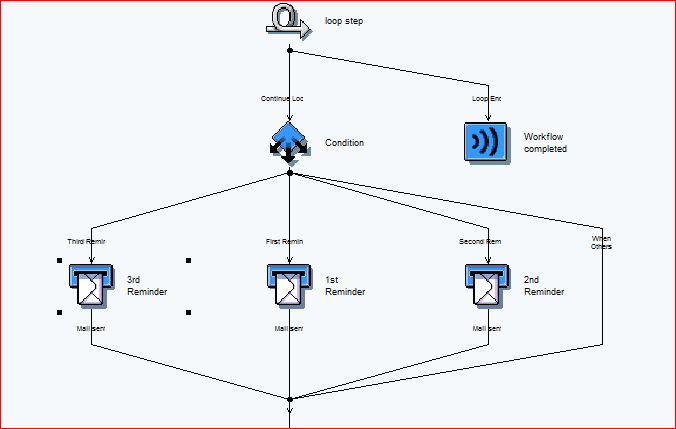
- First reminder(a branch created in workflow layout with the same description is sent if the value of counter (lv_counter) is 3.
- Second reminder (a branch created in workflow layout with the same description) is sent if the value of the counter (lv_counter) is 2.
- Third reminder (a branch created in workflow layout with the same description) is sent if the value of the counter (lv_counter) is 1.
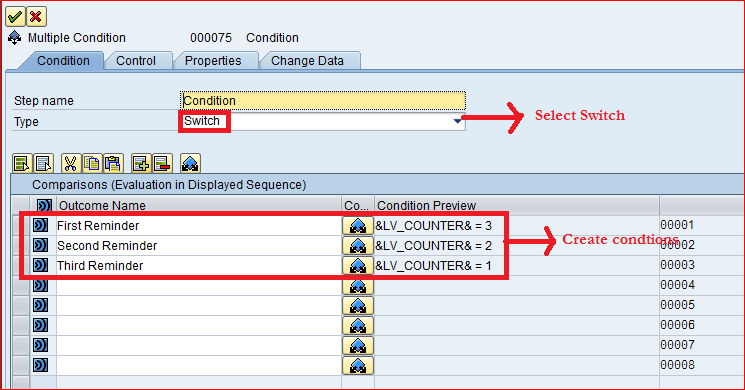
d) To fill the condition section, follow the steps as shown below.
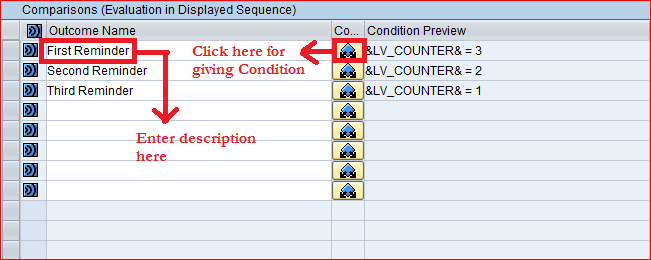
- First enter the outcome name.
- Then click on the condition to provide the condition necessary to execute this branch.
- Now just refer steps 14 and 15 to prepare expression for each outcome.
- Conditions provided to each outcome will be shown in condition preview column
e) Also provide other value outcome names.
- Here we can handle condition which does match any of the conditions defined in Comparison table.
- It just acts like when others in ‘case statement use in an ABAP code’.

f) Now save this step and go back to the workflow layout screen.
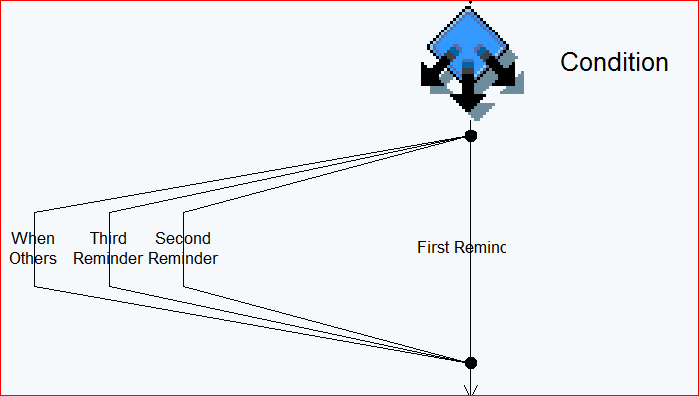
21) Now next process will be creating ‘send mail steps’ for all the three reminders.
A) Refer to step 19 and select the ‘Send Mail’ step.
B) ‘Send Mail’ Step.
a) In the mail step there is a tab named ‘Mail’.
b) Here we have the Recipients section:
i) Recipient types: Recipient type will allow us to choose recipients depending on Organisation Unit, job, position, work center or user.
ii) We can also choose recipients as ‘WF initiator’
(Workflow initiator- the user who starts the workflow).
iii) Expression: Here we can browse the workflow container element which will hold email addresses of the valid recipients during runtime.
C) Now Create the ‘Send Mail’ step in the First Reminder branch as shown below.
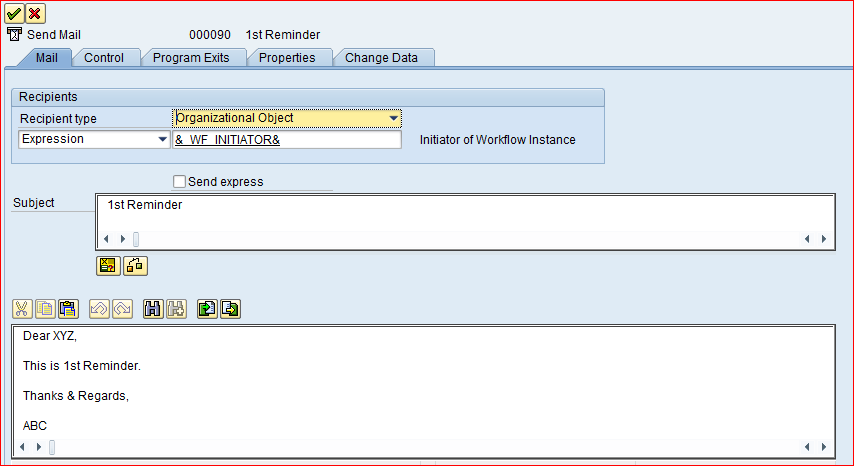
D) Follow same steps to create ‘Send Mail’ steps for Reminder 2 and Remainder 3.
22) Now the workflow layout looks as shown below.
23) Our final step will be to create ‘Container Operation step’ to decrement the counter
‘LV_COUNTER’.
A) Now refer the step 19 to create the ‘Container Operation step’.
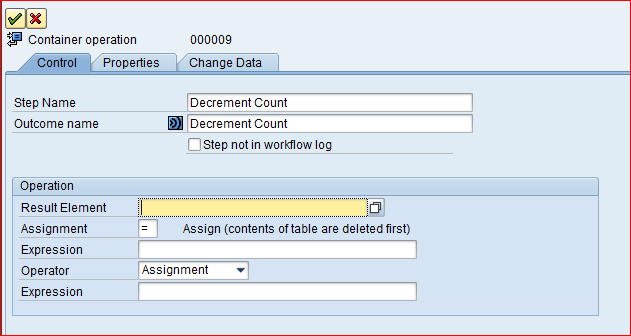
B) The First view of the ‘Container operation’ step looks as follows.
a) In this step we have to fill in step name, outcome name, etc.
b) There is a check box to include or exclude this step in the workflow log(After execution).
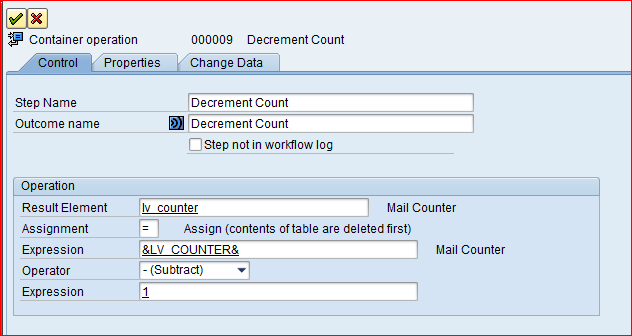
C) Now we have to fill the decrement expression in ‘Operation’ section as shown below.
a) Here we are decrementing the value count of the variable ‘LV_COUNTER’ (Initial value is ‘3’).
b) Result Element: Result Element is the variable or Parameter in which result is stored after calculation.
-
- Result Element: Result Element is the variable or Parameter in which the result is stored after calculation.
- Assignment: This section provides ‘=’ and ‘<-‘ symbols to assign to the result.
- Expression Section: Here we can provide a ‘Workflow Container’ element or we can directly assign numeric values.
- Operator Section: This section consists of ‘Arithmetic Operators’ which we can assign to the expression. Examples: +,-,/,*.
D) Save it and go back to workflow layout.
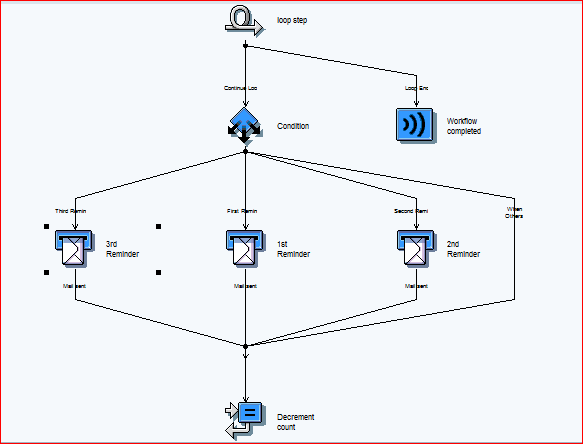
24) As our initial value of the counter is ‘LV_COUNTER = 3’, this loop will execute for three
times and all three reminders will be sent to WF_INITIATOR’s Inbox( T code: SBWP).
25) Check, Save and Activate.


26) Now the workflow is ready to execute.
These are Different Modules in SAP, Most used modules are as below:-
- SAP ABAP: ABAP stands for Advanced Business Application Programming. SAP ABAP is a high-level programming language.
- SAP MM: Stands for Materials management
- SAP SD: Stands for Sales & distribution
- SAP FICO: Financial Accounting and controlling
- SAP HR: Stands for Human Resource Management
- SAP EWM: Known as Extended, Warehouse Management
- SAP PP: Stands for Production planning & control
Following are the ORACLE modules:
- ORACLE PL — SQL Training Program
- ORACLE APPS R12 SCM: SCM stands for Supply Chain Management.
- ORACLE APPS R12 Technical : Technical course and module overview.
- ORACLE APPS R12 HRMS: HRMS stands for Human Resource Management System.
Along with these courses, we provide SAP HANA, and salesforce training also. To know more about courses and fees visit Click here.
Interested in SAP and Oracle Courses? Fill Your Details Here
Error: Contact form not found.




 WhatsApp us